PXN
PXN 2119 Pro Flight Simulator Joystick with Vibration Function
PXN 2119 Pro Flight Simulator Joystick with Vibration Function
Couldn't load pickup availability
PXN 2119 Pro Flight Simulator Joystick - Elevate Your Gaming Experience


Features & details
- 1. 【Product Features】 Game Flight Joystick is composed of "rocker arm unit" and "throttle valve" Simulate the throttle rudder, simulate the throttle push rod of the aircraft, can set the throttle reasoning, come with a sense of damping feedback, and freely control the engine engine, Built-in dual vibration motors to simulate the vibration generated by real airflow, allowing you to experience a stronger sense of real game substitution.
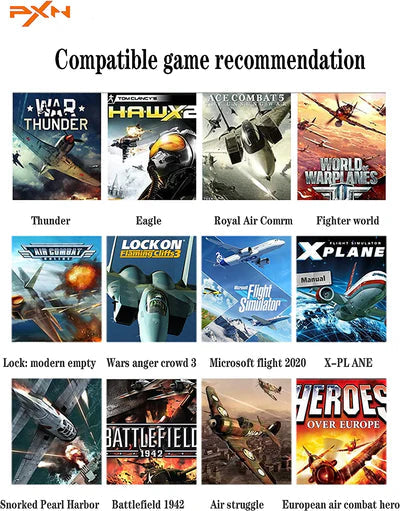
- 2. 【PS4/XBOX ONE/Series X|S/PC Compatibility】2119Pro is Compatible only PS4 for "Ace Combat-Unknown Territories" 2119PRO is Compatible only XBOX is suitable for "Microsoft Flight Simulator 2020" and "Ace Combat-Unknown Territories" , FOR PC Windos XP 7/8/10 such as for Microsoft Flight Simulator 2020,War Thunder, H.A.W.X.2, World of Warplanes, X-Plane, Air Combat, and more. 【NOTE:DOES NOT Support Mac Apple Devices / PS3/PS5/XBOX ONES/XBOX ONEX/XBOX 360 XBOX SERIES X/S)
- 3. 【PC Connection Method】Step 1 Launch PXN official website (e-pxn) to download and install driver,details show below:Home--support--tools--find PXN joysitck software to download .step 2 Extract the downloaded driver,and install according to instruction.step 3 plug the PXN Flight joystick into pc usb port,computer will prompt new hardware and install automatically. step 4 then you can play game or conduct joystick settings in PXN Joystick
- 4. 【PS4 / XBOX ONE/Series X/S Connection Method】PS4 /XBOX ONE /XBOX Series X/S Step 1 Plug the throttle into joystick, then plug the PS4 original controller into guidance port. (Original controller should be powered OFF) Step 2 Plug the joystick into PS4 console USB port.Step 3 PS4 Press No.12 button on joystick launching game to play/XBOX ONE/Series X/S Press No.13button on joystick launching game to play.
- 5.【PRECAUTIONS】:After connecting the computer USB, if the computer cannot recognize the PXN-2119 Pro, please download the PXN-2119 Pro driver. If the connection is successful but the buttons do not work, you need to enter the game settings page in the game and select the joystick mode. For the settings of "Microsoft Flight Simulator 2020", you can view the detailed setting steps in E-PXN Official Website - Service - Joystick Game button settings X-Plane 11.
Unmatched Control and Precision
The PXN 2119 Pro Flight Simulator Joystick is designed for gamers who demand precision and responsiveness. With its ergonomic design and intuitive layout, this joystick allows you to execute complex maneuvers effortlessly. The rocker arm unit and throttle valve give a realistic flight experience because they respond accurately to subtle movements. Whether you are flying a fighter jet or a commercial airline, the control you gain from this device can enhance your gameplay significantly.
Vibration Function for Realism
What sets the PXN 2119 apart is its built-in vibration function, which brings an added layer of immersion to flight simulations. You’ll feel the nuances of the aircraft's movements because the joystick vibrates according to turbulence and other in-game actions. This feature not only makes the experience more engaging but also helps you understand the aircraft's dynamics better. Whether you are navigating difficult weather or performing stunts, the feedback from the joystick enhances your ability to react quickly.
Compatibility Across Multiple Platforms
The PXN 2119 Pro Flight Simulator Joystick is compatible with PS4, Xbox One, Xbox Series X|S, and Windows PCs. It is an all-in-one solution for flight simulation enthusiasts, allowing you to transition seamlessly between different gaming systems. Because of its versatile design, you don’t need multiple controllers for different platforms. Instead, you just need this single device to enjoy your favorite flight simulator games without hassle.